

MetaTrader 5 supports hedging accounts natively: on a hedging-enabled account, every new trade opens its own separate position, so you can hold a long and a short on the same symbol at the same time. The MT5 platform supports both netting and hedging accounting systems, and which one you get depends entirely on how your broker set up your account. Check your account type first, then test in a demo hedge-enabled account before you touch live capital.
- Each trade gets its own position ticket, its own Stop Loss, and its own Take Profit.
- Opposing positions can coexist on the same symbol without canceling each other out.
- The Close By operation lets you close two opposite positions against each other, saving one spread compared with closing them separately.
To confirm your account mode, look at the terminal header or run AccountInfoInteger(ACCOUNT_MARGIN_MODE) in MQL5. If it returns ACCOUNT_MARGIN_MODE_RETAIL_HEDGING, you're on a hedging account. If not, ask your broker before building any strategy around holding opposing positions.
Key Takeaways
Hedging on MT5 works only on hedging-enabled accounts, where each trade opens a separate position with its own SL/TP, and the Close By operation saves one spread when closing opposing positions together.
| Point | Details |
|---|---|
| Verify account type first | Check ACCOUNT_MARGIN_MODE in the terminal; hedging requires ACCOUNT_MARGIN_MODE_RETAIL_HEDGING. |
| SL/TP attach per position | Each position ticket carries its own SL/TP; partial closes create a new ticket with no SL/TP set. |
| Close By saves one spread | Closing two opposite positions via Close By costs one spread instead of two. |
| Check hedged margin method | Open the symbol specification and confirm whether your broker uses basic calculation or the larger-leg method. |
| Test before live deployment | Run opposing positions and Close By in a hedge-enabled demo; confirm prop-firm rules before any funded challenge. |
Table of Contents
- How hedging on MT5 differs from netting
- How MT5 handles positions, SL/TP, Close By, and hedged margin
- How to open or enable a hedging account in MT5
- Placing and managing hedged positions in MT5: a practical walkthrough
- Pros, cons, and MT5 hedging strategies worth knowing
- What US traders must verify before relying on hedging
- Hedging and prop-firm rules: a FundedAxe compliance checklist
- Troubleshooting common hedging problems on MT5
- A practical note on using hedging deliberately
- Sources
How hedging on MT5 differs from netting
The core difference is position counting. On a netting account, MT5 treats each symbol as a single position. Buy 1.0 lot EURUSD, then sell 0.5 lot EURUSD, and the platform nets them: you're left with a 0.5-lot long. One position, one SL/TP, one ticket.
On a hedging account, those two trades become two separate positions. The 1.0-lot long stays open with its own ticket and its own SL/TP. The 0.5-lot short opens alongside it with a different ticket. Your net market exposure is 0.5 lots long, but your gross exposure is 1.5 lots, and margin is charged accordingly.
Netting is common on exchange-traded instruments and is the default for many institutional setups. Hedging is widely available at retail forex brokers outside the US. The account type is set at account creation by the broker and cannot be changed after the fact. You'll see it in the terminal header, and it's the first thing to verify before designing any multi-position strategy.
How MT5 handles positions, SL/TP, Close By, and hedged margin
Positions and key identifiers
Each open position on a hedging account carries a POSITION_TICKET. When you use Close By, MT5 creates an ORDER_TYPE_CLOSE_BY order that references the opposing position via position_by. These identifiers matter if you're writing or using Expert Advisors, because an EA that doesn't track POSITION_TICKET correctly can close the wrong leg.
Stop Loss and Take Profit inheritance
SL/TP levels attach to individual positions in a hedging account. Partial closes don't touch the SL/TP on the remaining portion of that position. Fully closing a position removes its SL/TP entirely because those levels are tied to the open position, not to the symbol. This is different from what some traders expect coming from netting accounts or MT4.
The Close By operation
MT5's Close By trade operation closes two opposite positions on the same symbol against each other in a single net operation. The practical benefit: you pay one spread instead of two. If you close a 1.0-lot long and a 1.0-lot short separately, you pay the spread twice. Close By collapses that into one transaction. It doesn't affect swap charges already accrued, and it doesn't change overnight costs going forward. The spread saving only applies at the moment of closure.

Close By is only available on hedging accounts and only when the broker and symbol support it. If the option doesn't appear in the position context menu, check the symbol specification and confirm with your broker.
Hedged margin calculation
MT5 exposes a SYMBOL_MARGIN_HEDGED property that brokers use to set how margin is calculated when you hold opposing positions on the same symbol. Two approaches exist:
| Method | How it works | What to check |
|---|---|---|
| Basic calculation | Margin charged on both legs independently | Full margin on each position; most conservative |
| Using larger leg | Margin charged on the larger position only | Reduced margin requirement; check symbol spec |
The method your broker uses is visible in the symbol's contract specification under "Hedged margin." Screenshot that field during your demo checks. The difference between the two methods can be significant when you're holding large opposing positions, and assuming the wrong one will distort your free margin estimates.
Pro Tip: Before you run any hedging strategy live, open the symbol specification in MT5 (right-click the symbol in Market Watch, select "Specification"), scroll to the "Hedged margin" field, and note the value and calculation method. Do this for every symbol you plan to hedge.
How to open or enable a hedging account in MT5
The account type is set by your broker at account creation. You cannot flip a netting account to hedging from inside the terminal. Here's what to do before committing to a live hedging setup.
Ask your broker these questions:
- Is the account type
ACCOUNT_MARGIN_MODE_RETAIL_HEDGING? - What is the
SYMBOL_MARGIN_HEDGEDvalue for the symbols I trade? - Is Close By available on those symbols?
- Are there any restrictions on holding opposing positions (prop-firm rules, strategy bans)?
Demo verification flow:
- Open a demo account specifically configured as a hedging account (request this from your broker's account opening page).
- Place a buy and a sell on the same symbol. Confirm two separate position tickets appear in the Trade tab.
- Try Close By from the position context menu. Verify it executes as a single net operation.
- Open the symbol specification and record the hedged margin field.
- Check that your free margin reflects the broker's hedged margin method, not double the full margin.
Pro Tip: If you use Expert Advisors, test them in a hedge-enabled demo first. Many EAs written for MT4 or netting accounts assume a single position per symbol. Running them on a hedging account without testing can produce duplicate entries or incorrect position management. You can install and test EAs on MT5 in a demo environment before any live deployment.
The MQL5 programming reference shows how to detect account type programmatically using AccountInfoInteger(ACCOUNT_MARGIN_MODE), which is the right way to build EAs that handle both account types gracefully.
Placing and managing hedged positions in MT5: a practical walkthrough
Opening positions
- Open your first position using a market order or pending order as normal. MT5 assigns it a unique
POSITION_TICKET. Note it in the Trade tab. - Set SL/TP on that position immediately. Right-click the position in the Trade tab and select "Modify or Delete." SL/TP are attached to this specific ticket.
- Open the opposing position on the same symbol. MT5 creates a second ticket. Both positions appear simultaneously in the Trade tab with separate P&L columns.
- Set SL/TP on the second position independently. The two positions have no linked SL/TP relationship.
Closing positions
- Close By: Right-click one position, select "Close By," then select the opposing position. MT5 executes a net closure and saves one spread.
- Partial close: Enter a smaller volume than the full position size. The remaining volume stays open with the original ticket and unchanged SL/TP.
- Standard close: Right-click and select "Close Position" to close at market. This pays the full spread.
Monitoring P&L, swaps, and margin
Each position shows its own floating P&L and swap in the Trade tab. When you hold opposing positions, swaps accrue on both legs independently. On some symbols, the swap rates for long and short positions differ, so the net overnight cost of a hedged position is rarely zero. BabyPips covers the mechanics of lots, leverage, and P&L in detail if you need a refresher on how those numbers compound.
Watch your free margin closely. Two open positions on the same symbol consume more margin than one, even when they offset each other directionally.
Dos and don'ts:
- Do test Close By on demo with mismatched lot sizes (e.g., 1.0 lot vs. 0.7 lot) to see how the residual position is handled.
- Do monitor free margin in real time, especially during high-volatility events.
- Don't use hedging to avoid closing a losing trade. Holding a losing long and adding a short doesn't eliminate the loss; it locks it in while adding swap costs on both sides.
- Don't assume one-click trading panels behave identically on hedging accounts. Some panels send market orders that open new positions rather than modifying existing ones.
Pros, cons, and MT5 hedging strategies worth knowing
Where hedging genuinely helps
- Separate SL/TP per leg. You can manage a long-term position and a short-term counter-trade with completely independent risk parameters.
- Run multiple EAs on the same symbol. One EA can hold a trend-following long while another runs a mean-reversion short. On a netting account, those two strategies would fight over a single position.
- Carry trades. Hold a long on a high-yield currency pair while hedging short-term directional risk during data releases, without closing the core carry position.
- Volatility event management. Add a short hedge before a major news event to limit downside on an existing long, then close the hedge after the event resolves.
Where hedging hurts
- Double spreads and commissions. Every position you open costs a spread. Hedging two positions on the same symbol costs two spreads to open and, without Close By, two to close.
- Higher effective margin usage. Even with the "using larger leg" method, hedged positions consume more margin than a single net position.
- Swap costs on both legs. Overnight, both positions accrue swap independently.
- Decision paralysis. Hedging a losing trade instead of closing it delays the decision and adds cost. It's one of the most common misuses.
- US-regulated broker restrictions. Many CFTC/NFA-regulated brokers enforce netting, making hedging mechanically unavailable regardless of strategy intent.
Common strategy types
Grid and locking strategies require hedging because they depend on holding opposing positions simultaneously. Direct hedging (same symbol, opposite direction) and cross-hedging (correlated symbols, opposite direction) both need a hedging account. Portfolio exposure management, by contrast, often works fine on netting accounts.
The practical rule: use hedging when it serves a defined purpose (carry trade, EA strategy separation, planned volatility hedge). Don't use it as a default response to a trade going against you.
What US traders must verify before relying on hedging
Many CFTC/NFA-regulated US brokers enforce netting accounts. This isn't a preference setting; it's a structural constraint baked into the account at creation. Industry explainers confirm that hedging is common at retail FX brokers globally but restricted or unavailable with many US-regulated brokers. Verify before you build a strategy around it.
Verification checklist for US traders:
- Ask your broker directly: "Is my account
ACCOUNT_MARGIN_MODE_RETAIL_HEDGING?" - Request the contract specification for your primary symbols and check the
SYMBOL_MARGIN_HEDGEDfield. - Ask whether Close By is supported on those symbols.
- Read your account agreement for any language about FIFO rules, opposing positions, or strategy restrictions.
- If you use a prop firm, read the challenge rules for any prohibition on hedging, arbitrage, or holding opposing positions.
Options if your US broker enforces netting:
Some traders use non-US brokers that permit hedging on MT5. Before doing so, understand the compliance implications for your specific situation and consult a qualified professional. Alternatively, redesign strategies to work within netting constraints: use pending orders and position sizing to approximate the same risk management without holding simultaneous opposing positions.
This is general information, not legal or financial advice. Confirm current rules with your broker, your prop firm, and a qualified professional before acting.
Hedging and prop-firm rules: a FundedAxe compliance checklist
Prop-firm policies on hedging vary widely. Some firms allow it; others restrict or ban it outright, particularly for strategies that could be flagged as arbitrage or lock-in manipulation. Before you use any hedging strategy on a funded challenge, verify the rules explicitly.
Fundedaxe allows EAs and algorithmic trading, news trading, and weekend holding on its simulated funded accounts. For the specific rules governing hedging and opposing positions on your challenge type, check the Fundedaxe trading rules directly and read the guidance on hedging and prohibited strategies before you start.
Funded-trader compliance checklist:
- Confirm whether hedging (holding opposing positions on the same symbol) is permitted on your specific challenge type.
- Verify that any EA you plan to use is allowed and has been tested on a hedge-enabled demo account.
- Check swap and weekend holding rules: if your hedging strategy involves overnight positions, confirm swap-free add-on availability if needed.
- Review any language about arbitrage, lock-in strategies, or opposing positions that could trigger a rule violation.
- If you plan to use grid or locking strategies, get written confirmation from support before the evaluation begins.
Pro Tip: Document your hedging strategy before the challenge starts. Write down the entry logic, the hedge trigger, and the exit plan. If a position is ever questioned, a documented strategy is your clearest defense. A solid trading plan built before the evaluation also helps you stay disciplined under pressure.
MT5 prop firm account differences are worth understanding before you commit to a challenge type, especially if your strategy depends on hedging being available.
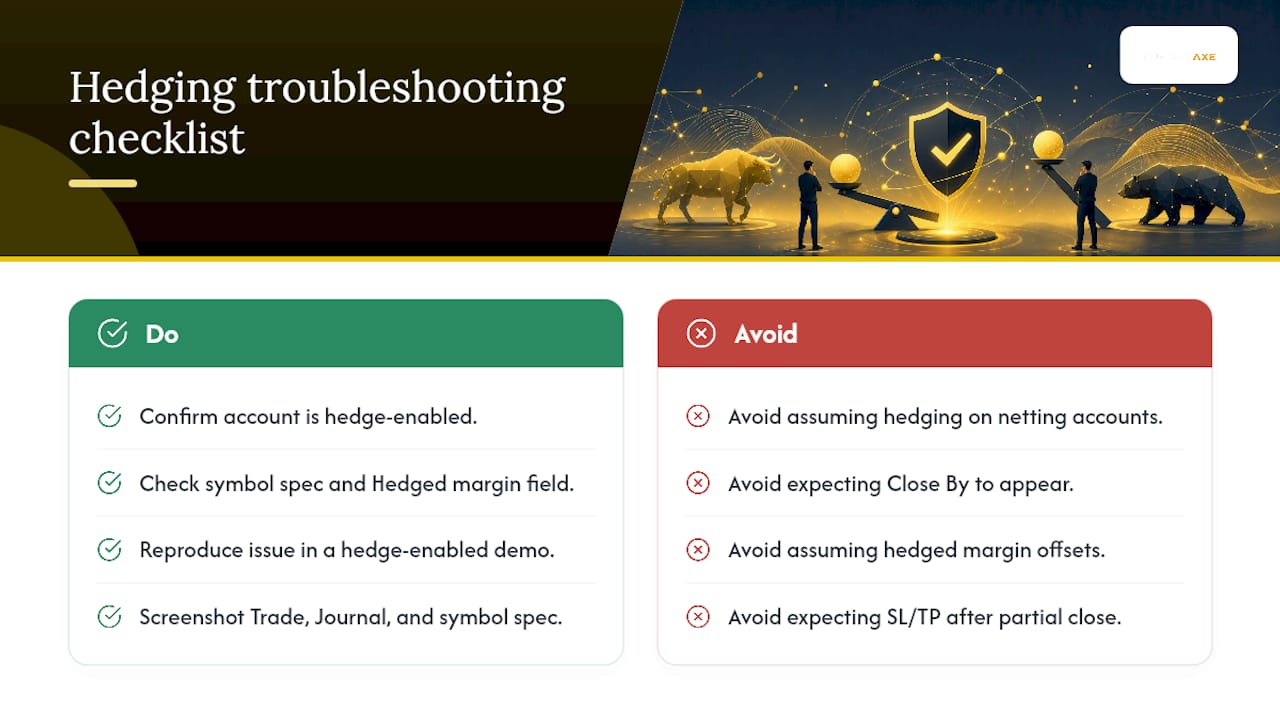
Troubleshooting common hedging problems on MT5
Can't open an opposing position:
Your account is almost certainly a netting account. Confirm with AccountInfoInteger(ACCOUNT_MARGIN_MODE). If it returns ACCOUNT_MARGIN_MODE_EXCHANGE or ACCOUNT_MARGIN_MODE_RETAIL_NETTING, hedging is not available. Contact your broker to open a separate hedging account.
Close By option doesn't appear in the context menu: Either the symbol doesn't support Close By, or the broker hasn't enabled it. Check the symbol specification and ask broker support. Reproduce in demo: open opposite positions and right-click to confirm whether the option appears.
Unexpected margin call with hedged positions: Your broker may use basic calculation (full margin on both legs) rather than the larger-leg method. Open the symbol specification and check the "Hedged margin" field. If it's set to full margin on both sides, your free margin will drop faster than you expect when holding opposing positions.
SL/TP disappeared after a partial close: This is expected behavior. SL/TP attach to the position ticket. A partial close creates a new ticket for the residual volume, and that new ticket has no SL/TP set. You need to set SL/TP on the new ticket manually.
EA opening duplicate positions or behaving erratically:
The EA likely assumes a netting account. Check whether it uses PositionSelect() or PositionGetTicket() correctly for hedging. Test in a hedge-enabled demo and review the Journal tab for error messages. The MQL5 account detection reference shows the correct programmatic approach.
What to capture for broker/prop-firm support: Screenshot the Trade tab showing both positions and their tickets, the Journal tab showing any error messages, and the symbol specification showing the hedged margin field. These three screenshots resolve most support queries faster than a text description alone.
A practical note on using hedging deliberately
Hedging is a tool with a specific job. It works when you have a clear reason to hold opposing positions simultaneously: running separate strategies, managing a carry trade through a volatile event, or separating EA logic cleanly. It doesn't work as a substitute for a stop loss or as a way to avoid acknowledging a bad trade.
The traders who get into trouble with hedging are almost always the ones who added a hedge reactively, without a plan for when or how to close it. Both legs then sit open, accumulating swap costs, consuming margin, and waiting for a decision that never comes. Test your setup in demo, document the strategy before you deploy it, and verify your account type before you build anything around it.
Sources
- Flexible MetaTrader 5 trading system with all order types
- MetaTrader 5 features hedging position accounting system - MQL5 Articles
- The Difference Between Hedging and Netting on MT5
For account-specific details, consult your broker's support team directly and request the symbol contract specification for every instrument you plan to hedge. Broker-level settings override platform defaults, and the only reliable source for your account's hedged margin behavior is the specification your broker has configured.
This article is general information, not a substitute for advice from a qualified financial advisor. Consult a qualified financial professional about your own circumstances before acting on anything here.